Introduction
Setting Up Your User Account
After successfully logging into Accurail for the first time, you'll need to complete your account setup. One crucial step in this process is uploading your signature, which will be used to sign off on Safe Work Packs and other important documents within the system.
Uploading Your Signature
Follow these steps to upload your signature:
Navigate to your account settings:
You can find this by clicking on your profile icon or name in the bottom left corner of the screen.
Or by clicking this link https://accurail.co.uk/settings
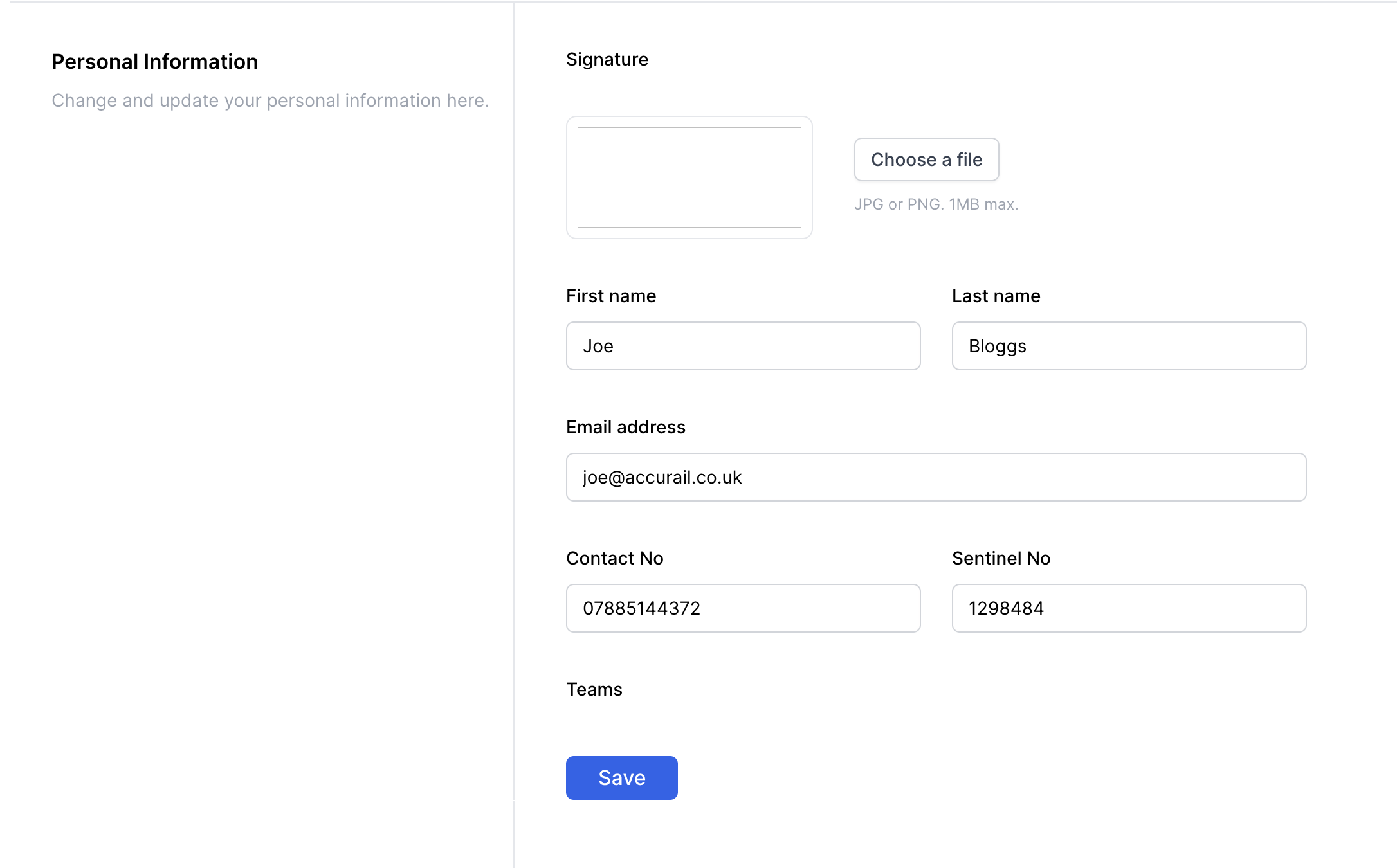 Accurail accounts setting page
Prepare your signature:
- Create a clear, legible signature on a white piece of paper OR use a digital app to create one.
- Scan or take a high-quality photo of your signature.
- Save the image as a PNG file on your device.
Upload your signature:
- Click the 'Choose a file' button in the signature section.
- Browse your device and select the PNG file of your signature.
- Once selected, the file name and a preview will appear next to the upload button.
- Click 'Upload' to proceed or 'Remove' if you need to select a different image.
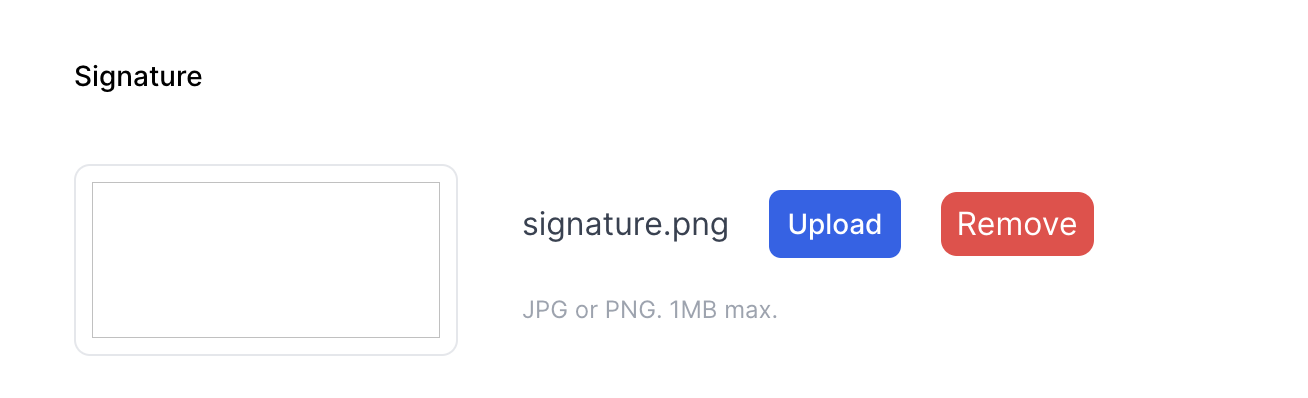 Accurail Signature Upload
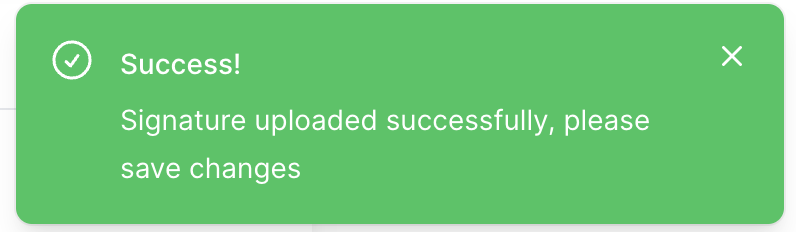 Accurail Signature Uploaded Success
Save your changes:
- After uploading, click the 'Save' button
- Click this button to save your new signature to your profile.
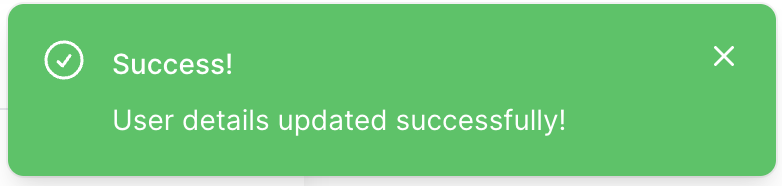 Accurail Settings Saved
Verify your signature:
- Once saved, you should see a preview of your uploaded signature.
- If you're not satisfied with how it looks, you can repeat the process to upload a new version.
Remember, your signature is a crucial part of your Accurail account. It's used to verify your identity and authorise actions within the system. Always ensure that the signature you upload is clear, legible, and an accurate representation of your actual signature.
Key Points
- Navigate to your account settings to find the signature upload section
- Prepare a clear signature saved as a PNG file
- Click 'Upload' to select your signature file
- Hit 'Save' or 'Update' to confirm the changes
- Verify that your signature appears correctly in the preview