Person In Charge (PICs)
Starting Your Shift
Before you can edit, fill in, or accept your Safe Work Pack, you must first start your shift. This is a crucial first step that must be completed on the Accurail mobile app before any SWP work can begin.
SWPs will only be in the 'Awaiting Shift' phase once they have been Authorised by the Responsible Manager.
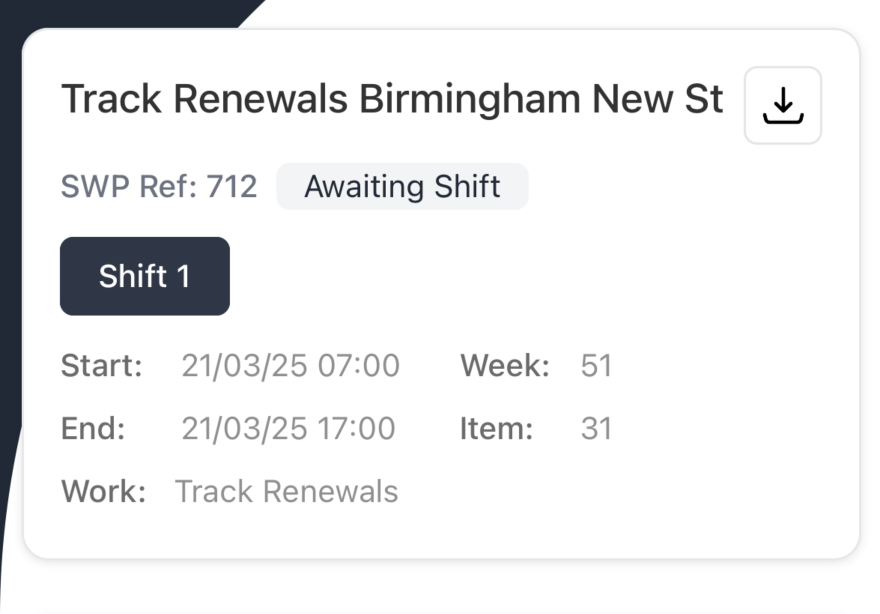
Starting your shift is a one-way process. Once started, you cannot go back or undo this action for the current shift.
How to Start Your Shift
- Open the Accurail mobile app
- Navigate to the Dashboard
- Find an SWP with the status of Awaiting Shift
- Tap the "Start Shift" button

SWP Not Required Option
If you determine that a Safe Work Pack is not required for your shift, you can set this during the shift start process:
- During shift start, look for the "SWP Not Required" option
- Select this option if applicable
- You will be prompted to provide a reason for why the SWP is not required
- Enter your reason in the text field provided
- Confirm your selection
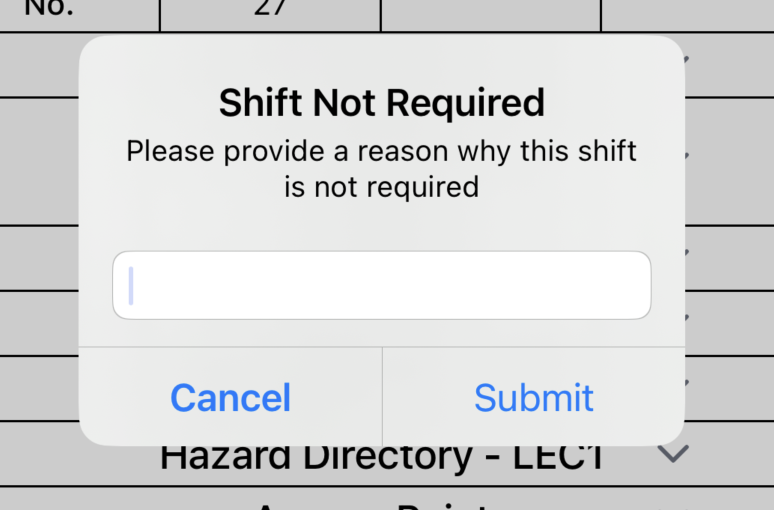
When marking an SWP as "Not Required", always provide a clear and detailed reason. This helps with record-keeping and compliance requirements.
Early Shift Reminders
The system will remind you if you try to start your shift earlier than scheduled:
- You'll receive a notification if attempting to start before your scheduled time
- The system will ask you to confirm if you want to proceed early
- Consider whether starting early is necessary for your work requirements
What Happens After Starting Your Shift
Once you've successfully started your shift:
- You can now edit and fill in your SWP details
- The Acceptance on Site process becomes available
- All SWP-related functions are unlocked in the mobile app
- Your shift status is recorded in the system
Remember: Starting your shift must occur before you can perform any SWP-related tasks. This includes editing SWP details, completing risk control briefings, and accepting packs on site.
Next Steps
After starting your shift, you can proceed to:
- Review and edit your SWP details
- Complete the Acceptance on Site process
- Fill out risk control briefings
- Accept or reject your Safe Work Pack