Assurance Checkers
Assurance Check Process
This guide walks you through how to review, approve, and reject Safe Work Packs as an Assurance Checker.
When Assurance Checks Occur
Assurance checks can be set up at two points in the pack lifecycle:
Pre-Verification Assurance Check
When pre-verification assurance checking is turned on, things work a bit differently for Planners and Assurance Checkers:
- The Planner finishes the pack and selects "Send to Assurance" from the Options dropdown (instead of "Send to PIC")
- The pack enters "Pre-Verification Assurance Check" status
- The Assurance Checker reviews the pack and either approves or rejects it
- If approved, the pack moves to "Verification" status for PIC review
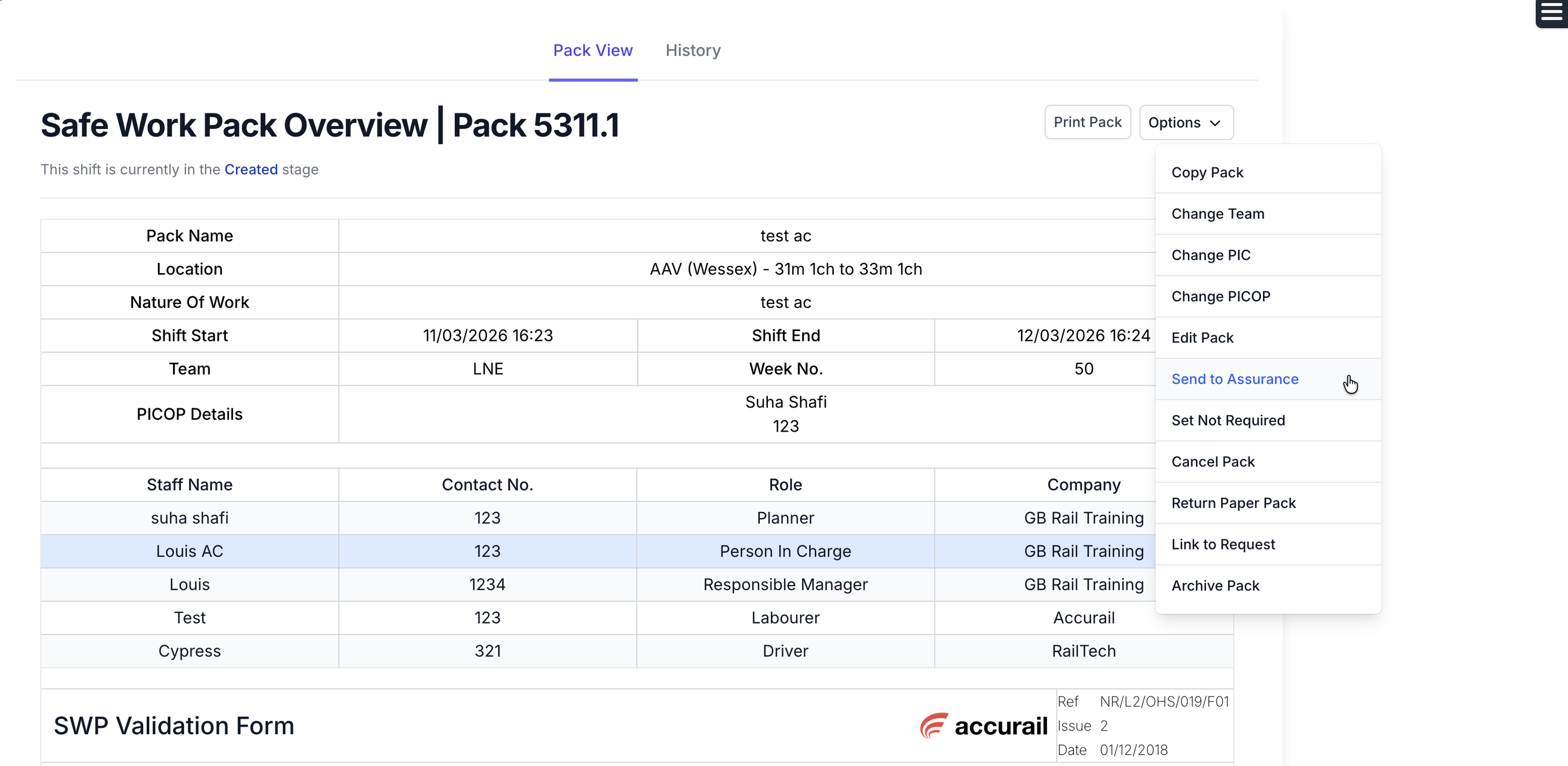
Once the pack is sent to assurance, it'll show the current stage along with the Approve and Reject buttons for the Assurance Checker:
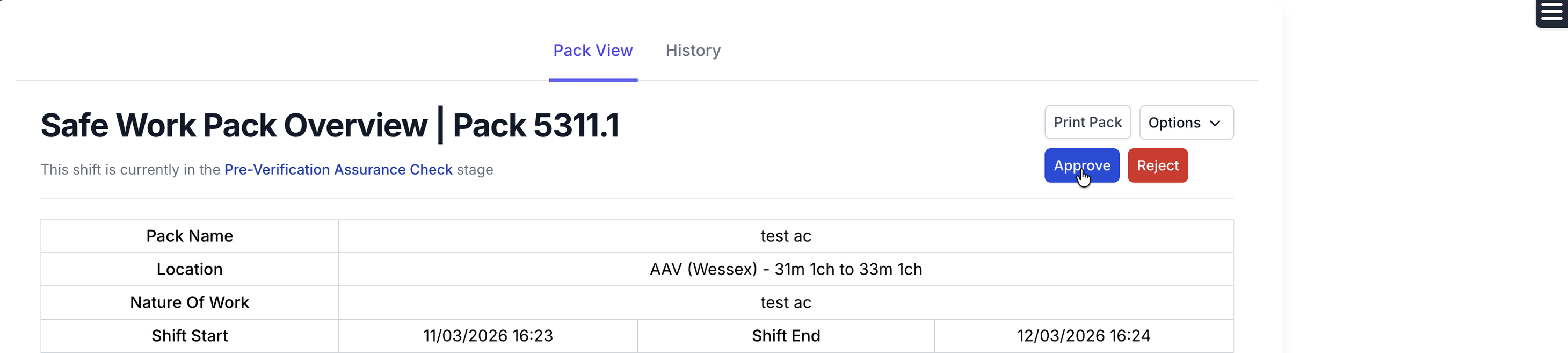
Post-Authorisation Assurance Check
When post-authorisation assurance checking is turned on:
- The Responsible Manager authorises the pack as normal
- The pack enters "Post-Authorisation Assurance Check" status (instead of going straight to "Awaiting Shift")
- The Assurance Checker reviews the pack and either approves or rejects it
- If approved, the pack moves to "Awaiting Shift" status
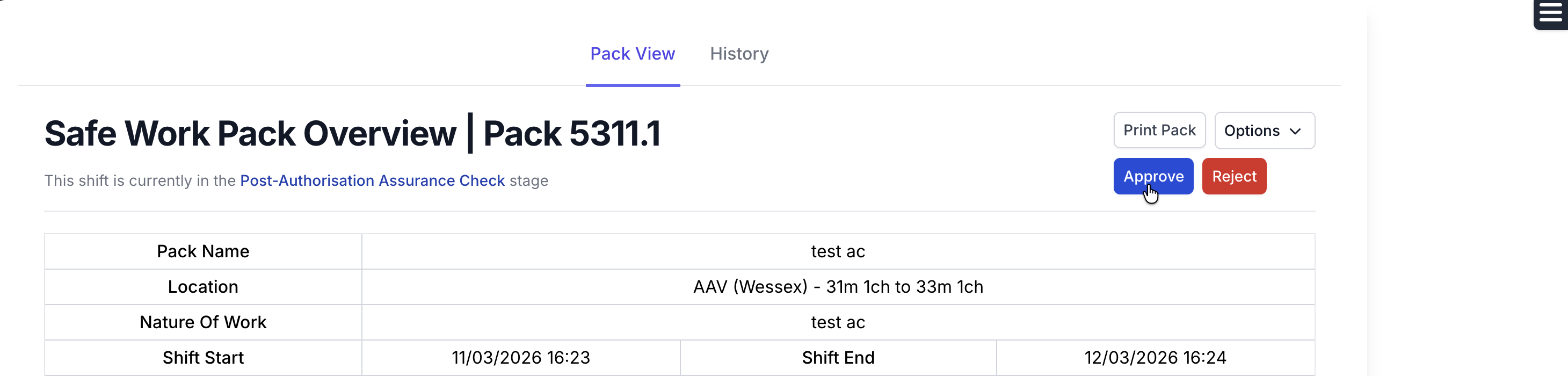
Your company may have one or both of these checks turned on. The dashboard shows all packs awaiting your review regardless of which stage they're at.
Accessing Your Assurance Queue
- Go to your Accurail dashboard
- Click the "Packs Awaiting Assurance" card to see all packs that need your review
This card shows the total count of packs awaiting assurance checks across both stages.
Reviewing a Pack
- Open the Safe Work Pack from your assurance queue
- Go through the pack details, checking for accuracy and compliance
- Decide whether to approve or reject
What to Check
When you're reviewing a pack, look out for:
- Pack details are filled in: all required sections are complete and accurate
- Location info is correct: site limits, line details, and access/egress routes look right
- Risk assessments make sense: task risks and control measures are suitable for the planned work
- Supporting documents are there: any required diagrams, RT9909, or NR3180 forms are attached and correct
- 019 compliance: the pack meets the relevant NR/L2/OHS/019 requirements
Approving a Pack
Once you're happy the pack meets quality and compliance standards:
- Click the "Approve" button on the pack view
The pack will then move to the next status:
- Pre-verification approval: pack moves to "Verification" for PIC review
- Post-authorisation approval: pack moves to "Awaiting Shift" and is ready for use on site
When you approve a pack, the relevant people (PIC, RM, or Planner) get an email letting them know the pack has moved on.
Rejecting a Pack
If the pack doesn't meet the required standards:
- Click the "Reject" button on the pack view
- Enter a reason for rejection in the text field that appears (this is required)
- Submit the rejection
The pack goes back to the Planner with a "Rejected" status. They'll get an email with your rejection reason so they can fix things up.
Be Specific When Rejecting
Give clear, specific feedback when rejecting a pack. For example, instead of "Incorrect details", write "Site limits are wrong, northern boundary should be 12m 40ch not 12m 20ch". This saves time going back and forth.
Email Notifications
You'll get email notifications when a pack enters assurance check status and needs your review. The email includes a direct link to the pack so you can jump straight in.
The subject line looks like: "Assurance Check Required SWP Ref: [pack reference]"
Repeated Packs
For packs with repeated shifts, the assurance check covers all shifts in the pack. When you approve or reject, it applies to every shift, so you don't need to go through each one separately.
Key Points
- You need the Assurance Checker role to perform assurance checks
- You can't check packs where you're the Planner, PIC, or RM
- Pre-verification checks happen before PIC verification
- Post-authorisation checks happen after RM authorisation
- Rejections require a reason so the Planner knows what needs fixing
- All assurance check decisions are logged with timestamps for audit purposes