Company Map
Submitting Assets to the Company Map
Users with Create Submissions permission can submit new access points and hazards to the Company Map. Submissions go into a review queue where an approver can accept or reject them before they become visible to everyone in the company.
Create Submissions Permission
Create Submissions permission is enabled by default for all users. If you cannot see the submission options described on this page, contact your administrator to check your map permissions.
Three Ways to Submit
1. Right-Click on the Map (Recommended)
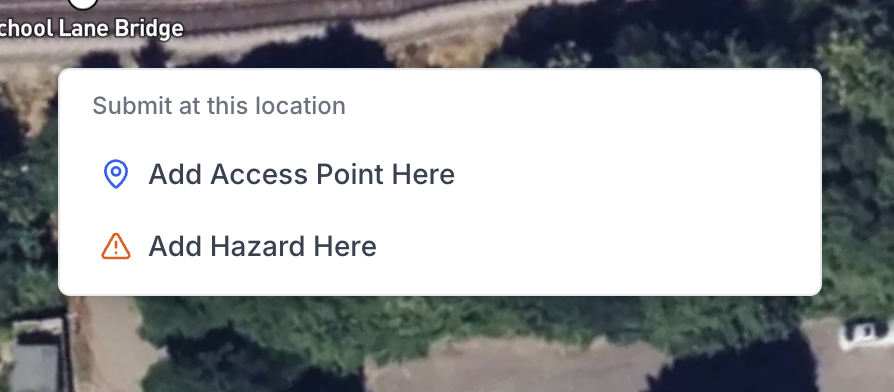
Right-clicking on an empty area of the map opens a context menu with the options Add Access Point Here and Add Hazard Here. The coordinates are automatically pre-populated from the location you right-clicked, saving you from having to position a pin manually. This is the quickest and most accurate way to submit.
2. Floating Action Button (FAB)
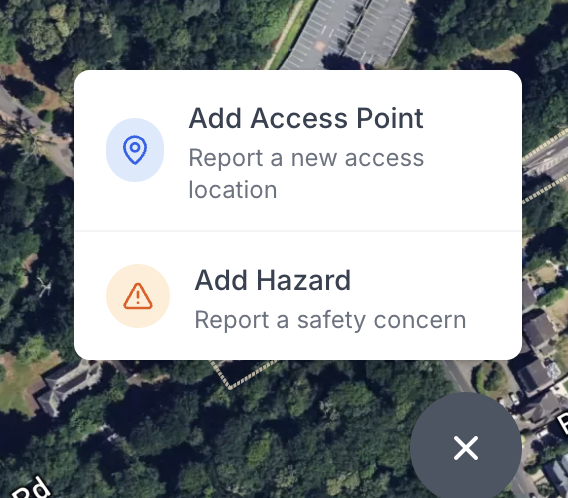
The blue + button in the bottom-right corner of the map opens a menu with two options:
- Add Access Point - report a new access location
- Add Hazard - report a safety concern
3. Create New During Pack Creation
When creating a pack and filling in the Access & Egress section, you can create a new access point without leaving the pack. See Creating a New Access Point from a Pack for details.
Filling in the Submission Form
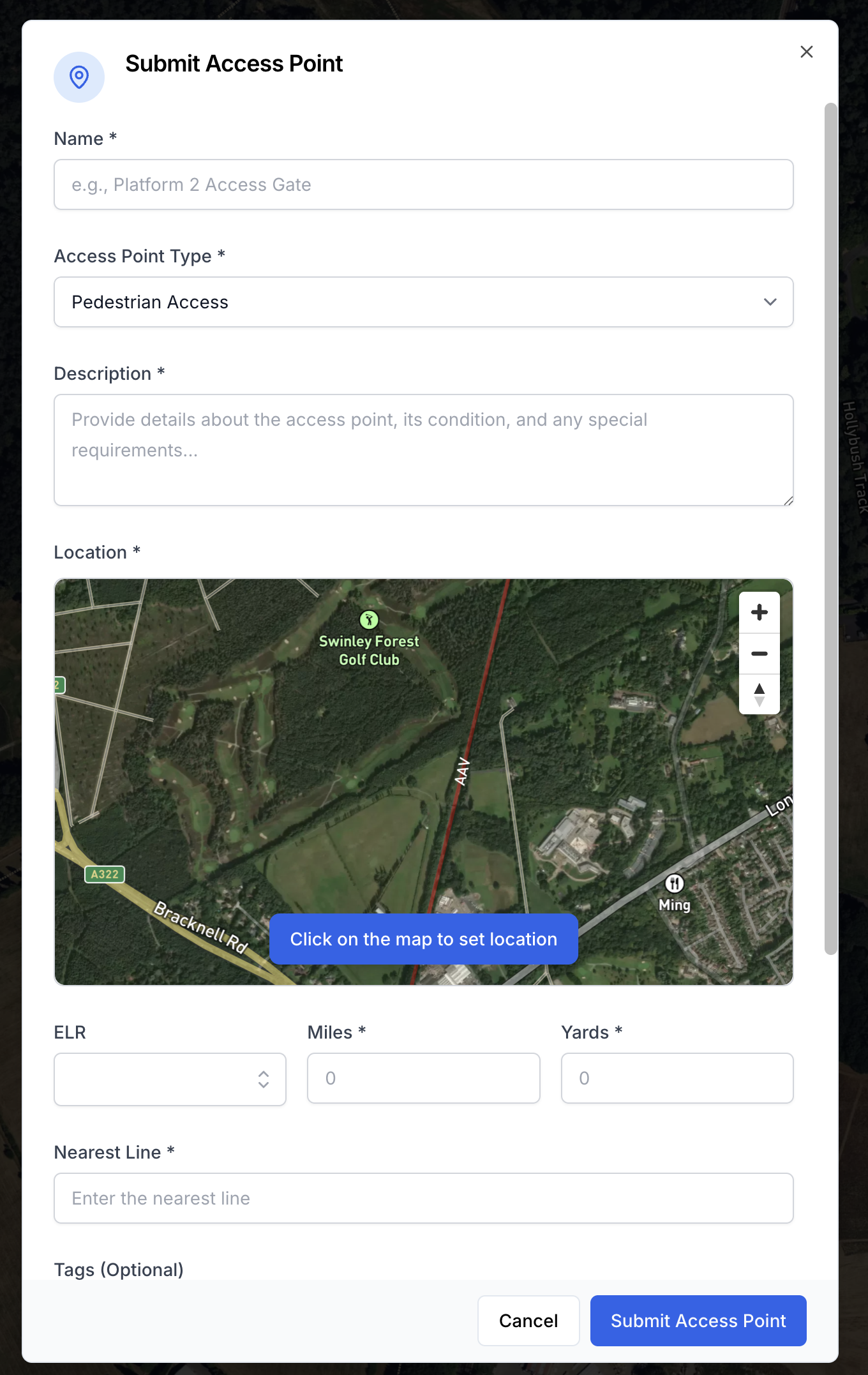
All three methods open the same form. The difference is how much is pre-filled based on context.
Choosing a Type
First, choose whether you are submitting an Access Point or a Hazard, then select the specific sub-type:
Access Point types:
- Pedestrian Access
- Vehicle Access
- RRV Access
- Unknown/Other
Hazard types:
- Vegetation
- Derailment Risk
- Electrification Hazard
- Structural Issue
- Track Condition
- Environmental Hazard
- Other
For hazards, you also select a Severity Level: Low, Medium, High, or Critical.
Name and Description
Give the asset a clear, identifiable name - for example, Platform 2 Access Gate or Overgrown Vegetation Near Bridge 14. Use the description field to provide context: access conditions, hazard details, special requirements, or anything else relevant to people using this information on site.
Location
Set the location by:
- Clicking on the location picker map inside the form to drop a pin
- Allowing device location access to auto-populate your current GPS coordinates
The ELR and mileage fields are calculated automatically from the pin position. You can adjust the ELR using the dropdown if needed.
Location Tip
If you are on site, allow Accurail to use your device location to auto-populate GPS coordinates accurately. This is the quickest and most precise option.
Tags
Select tags to make the asset easier to find and filter. Tags are optional but recommended.
Access Point tags: Gated, Locked, Step-free, Limited Access, Emergency Only, Public Access, Permit Required
Hazard tags: Immediate Attention, Seasonal, Weather Dependent, Ongoing Issue, Reported to Network Rail, Under Monitoring
Photos
Attach one or more photos of the asset. Photos are especially useful for hazards and for access points where physical condition or gate/lock details are relevant.
After Submission
Once submitted, the asset has a Pending status. It enters the review queue for your company's approvers.
What happens next
Your submission will be reviewed by an approver before it appears on the map for everyone. You can track its status by tapping the marker on the map (it will be visible to you while pending).
Editing Your Pending Submission
While your submission is still Pending, you can edit it directly without needing approval. Open it either by tapping its marker on the map and clicking Edit, or from the Access & Egress section of the pack you created it from, then update any field.
Once a submission has been Approved, it becomes part of the company map and direct edits are no longer available. At that point, you can use Suggest an Edit to propose changes, which will go through the approval process.