Person In Charge (PICs)
Verifying & Rejecting SWPs
There's two ways to Verify & Reject Safe Work Packs on Accurail. Below, we'll run through how to Verify and how to Reject SWPs.
The first is by the mobile app but this can also be done on the website as well.
Mobile App
Verifying SWPs
- Navigate to a Safe Work Pack that has the "Verification" status.
- Open the SWP Validation (F01)
- Select an option in each of the checkboxes.
- Click the "Verify" button.
You'll then be alerted the SWP has been verified and navigated back to the Dashboard. Note that the SWP will now not be visible and be with the Responsible Manager for Authorisation.
Rejecting SWPs (Mobile)
- Navigate to a Safe Work Pack that has the "Verification" status.
- Open the SWP Validation (F01)
- Select an option in each of the checkboxes.
- Add text to the "Reason for Rejection" field.
- Click the "Reject" button.
You'll then be alerted the SWP has been rejected and navigated back to the Dashboard.
Be sure to do a thorough check of the SWP before verifying it. This includes checking all details are accurate and compliant with the 019 Standard. Review our verification requirements checklist to ensure you've confirmed all necessary requirements.
Web App
Verifying SWPs
You might not always have access to the mobile app. If this is the case, you can verify Safe Work Packs on the web site also!
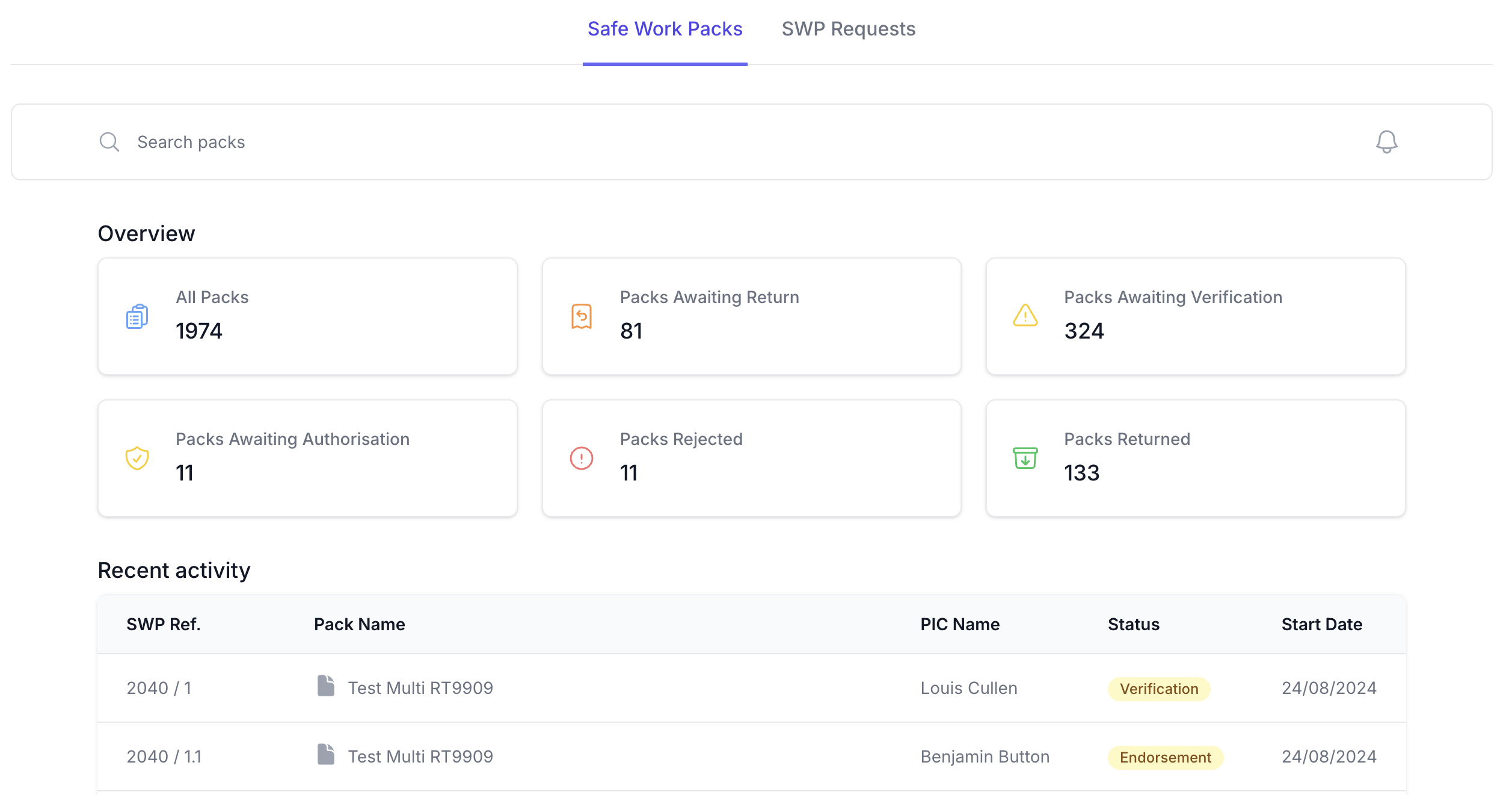
- On the Dashboard, click on the "Packs Awaiting Verification" box.
- Open the Safe Work Pack you wish to Verify
- Scroll down to the "SWP Validation Verified by PIC" section.
- Select an option in each of the checkboxes.
- Click the "Verify" button.
You'll then be alerted the SWP has been verified. You'll see the status change from Verification to Authorisation.
Rejecting SWPs (Web)
- On the Dashboard, click on the "Verification" status.
- Open the Safe Work Pack you wish to Reject
- Scroll down to the "SWP Validation Verified by PIC" section.
- Select an option in each of the checkboxes.
- Add text to the "Reason for Rejection" field.
- Click the "Reject" button.
You'll then be alerted the SWP has been rejected.
What to Review Before Verifying?
Before you begin the verification process, ensure you have reviewed all the requirements in our comprehensive verification requirements checklist. As a PIC, you must confirm:
Key Requirements Summary:
- Access & Safety: Suitable access/egress routes, first aid provisions, additional control measures, and task equipment
- Operational: Supporting roles, SSoW method review, protection/warning systems, and error identification
- Welfare: Gender-specific welfare facilities meeting all team needs
- Process: Verification completed at least a shift in advance using form NR/L2/OHS/019/F01
The detailed checklist covers all safety, operational, and welfare requirements that must be confirmed before verification.