Responsible Managers
Authorisation Process
This guide covers the step-by-step process for authorising Safe Work Packs through the Accurail dashboard.
Dashboard Authorisation Process
Accessing Your Authorisation Queue
- Navigate to your Accurail dashboard
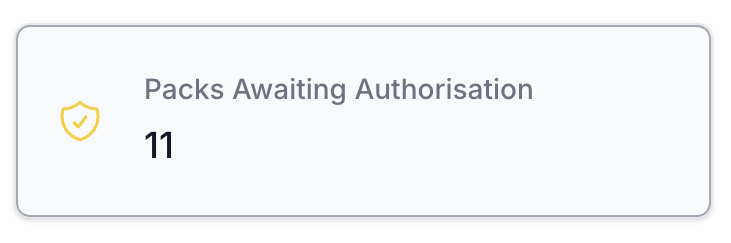
- Click on the "Authorisation" card to view pending Safe Work Packs
Step-by-Step Authorisation
- Review the SWP and discuss with the Person in Charge if required
- Scroll down to the F01 form section "Authorised by RM"
- Check each verification box to confirm compliance with 019 standard requirements

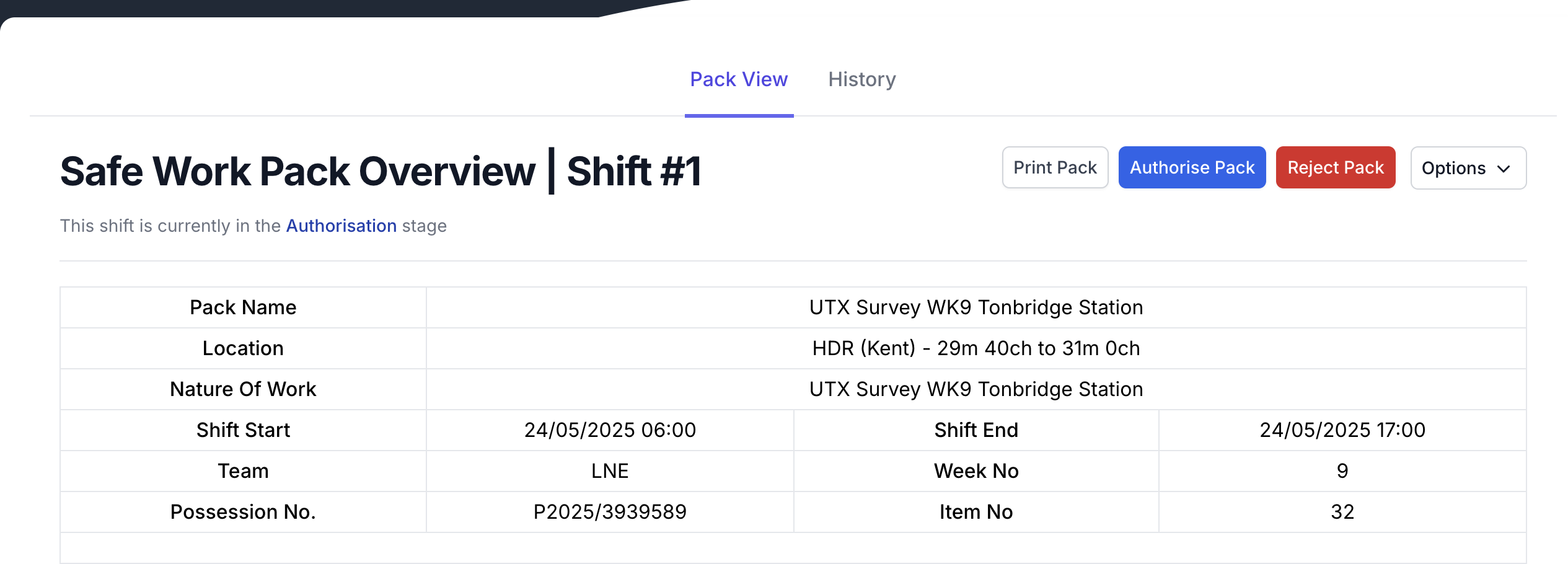
- Scroll up and click the "Authorise" button to complete the process
Automatic Name and Signature Addition
When you authorise a Safe Work Pack, Accurail automatically:
- Adds your name to the F01 form in the "Authorised by RM" section
- Applies your digital signature to complete the authorisation record
- Records the date and time of authorisation for audit purposes
This ensures compliance with the 019 standard documentation requirements and provides a complete audit trail without requiring manual signature entry.
If Changes Are Required
If the SWP is incorrect:
- Click the "Reject" button (shown in the authorise/reject buttons image above)
- Enter clear text explaining why the SWP is being rejected
- Be specific about what needs to be corrected (e.g., "Incorrect site limits - northern boundary should be 12m 40ch not 12m 20ch")
- Submit the rejection - the SWP will automatically return to the Planner for changes
The rejected SWP will go through the entire process again:
- Planner makes the required changes
- Person in Charge re-verifies the updated SWP
- Returns to you for authorisation
Clear Rejection Reasons
Always provide specific, actionable feedback when rejecting an SWP. This helps the Planner make the correct changes quickly and reduces back-and-forth communications.
After Authorisation
Once authorised, the SWP will progress to "Awaiting Shift" status and be ready for use on site.
Understanding Pack Status After Authorisation
- Pack Status Changes: Pack moves automatically to "Awaiting Shift" status upon successful authorisation
- Monitoring Requirements: RMs should monitor packs in "Awaiting Shift" status for overdue items using the dashboard reporting tools
- Re-authorisation Requirements: If changes are made to an authorized pack, it will require fresh authorisation before use
- Timeline Tracking: Use reports to track time between authorisation and shift start to identify planning efficiency
Email Notifications
You receive email notifications when:
- A Person in Charge has verified an SWP and it's ready for your authorisation
- Changes have been made to an SWP requiring re-authorisation
- An SWP is approaching its expiry date for cyclical/repeated work
Best Practices
Authorisation Compliance
- Always verify PIC verification before authorising
- Complete all F01 form sections thoroughly
- Authorise at least a shift in advance as required by 019 standard
- Document any issues or concerns clearly
- Communicate directly with PIC when questions arise
Common Issues to Check
- Incorrect site limits - verify boundaries are accurately defined
- Wrong SSoW - ensure correct Safe System of Work is selected
- Incorrect line statuses - check line blockages and possessions are accurate
- Wrong WON - verify Work Order Number matches the planned work
- Missing diagrams - ensure all required site diagrams are attached