Person In Charge (PICs)
Completion of Work Sign Off
Once your work activities are complete, you need to formally sign off on the Safe Work Pack to confirm that all work has been completed safely and the site is ready for normal operations.
Accessing the Completion Form
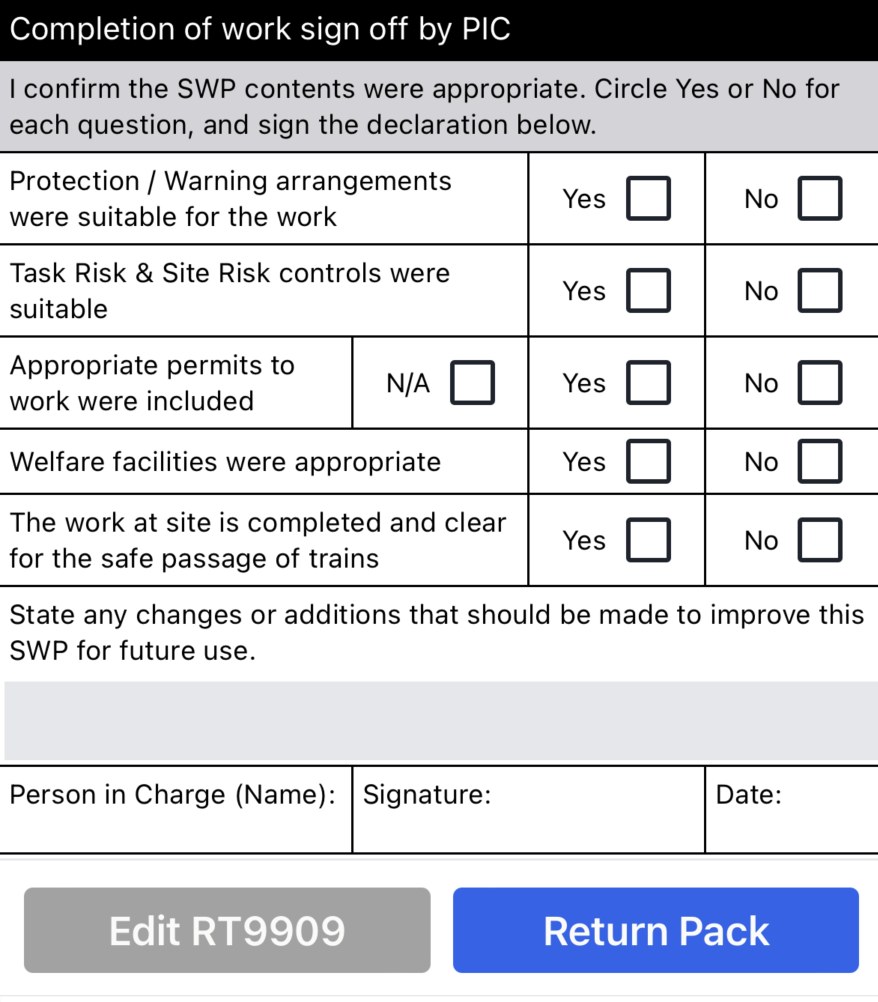
The completion of work sign off is located at the bottom of the SWP Validation (F01) form:
- Open your active SWP on the mobile app
- Navigate to the SWP Validation (F01)
- Scroll to the bottom to find the "Completion of Work Sign Off" section
- Complete all required sections before submitting
Completion Checklist
You must review and confirm each of the following areas by selecting "Yes", "No", or "N/A" where applicable:
1. Protection / Warning Arrangements
Confirm whether the protection and warning arrangements were suitable for the work being carried out.
2. Task Risk & Site Risk Controls
Verify that the task risk controls and site risk controls identified in the SWP were appropriate and effective.
3. Appropriate Permits to Work
Confirm that all necessary permits to work were included in the SWP. Select "N/A" if no permits were required for this work.
4. Welfare Facilities
Verify that the welfare facilities provided were appropriate for the work duration and team size.
5. Work Completion Confirmation
Confirm that all work at the site is completed and the area is clear for the safe passage of trains.
All checkboxes must be completed before you can return the SWP. You cannot proceed without confirming each section.
SWP Suitability Assessment
If any of the above sections are marked as "No", you must provide feedback on what should be changed or improved for future SWPs. Use the comments section to detail:
- Specific issues encountered
- Recommended improvements
- Additional resources or information needed
- Safety concerns that arose during the work
Returning the SWP
- Complete all checkbox confirmations
- Add any improvement comments if sections were marked as "No"
- Click the "Return Pack" button
When you click "Return Pack", the following information will be automatically populated:
- Person in Charge (Name): Your name from your profile
- Signature: Your digital signature from your profile settings
- Date: Current date and time
Completion Confirmation
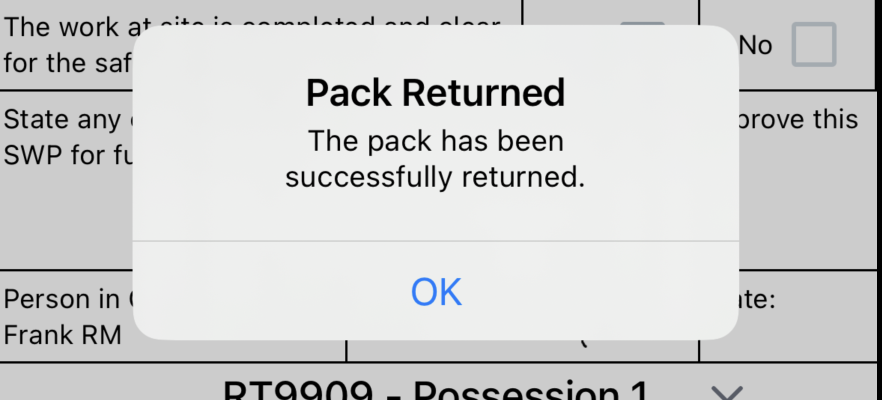
After clicking "Return Pack", you'll see a confirmation modal stating "SWP Returned" to confirm that your Safe Work Pack has been successfully completed and returned to the system.
The completed SWP will then be available for review by the planning team and used to improve future SWP planning.
Once an SWP is returned, it cannot be modified. Ensure all information is accurate before submitting.
Edit RT9909 Option
If you need to make changes to the RT9909 before returning the SWP, you can use the "Edit RT9909" button to modify any site information that may have changed during the work.