Person In Charge (PICs)
Acceptance on Site
To utilise a Safe Work Pack on site, you'll need to fill out the risk control briefing and accept the SWP. This can only be done on the Accurail mobile app and must occur after starting the shift.
A common misconception is that you must accept your Safe Work Pack at least a shift in advance. This is not true—only the Verification (if PIC) or Endorsement (if COSS) must be completed a shift in advance, as explained in the Verification Process.
Risk Control Briefing
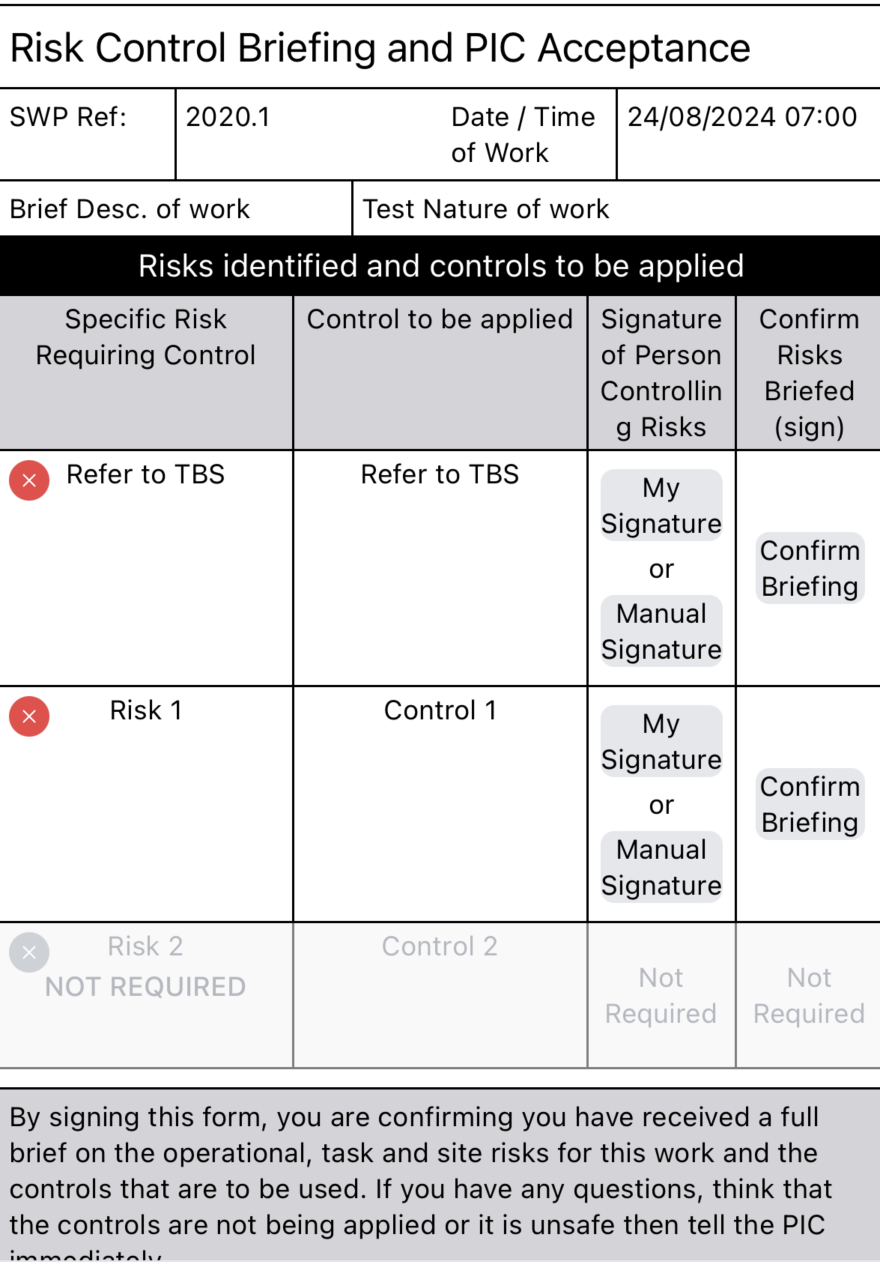
The Risk Control Briefing section requires you to review and sign against each task risk identified in the Safe Work Pack, confirming that you understand the hazards and control measures for the work.
- Open the SWP Validation (F01).
- Scroll down to the "Risk Control Briefing" section.
- Tap to add your signature next to each of the task risks listed in the SWP.
You won't be able to sign off on the Risk Control Briefing until you've added your signature to your profile. Head to profile and add your signature in the settings.
Workgroup Briefing
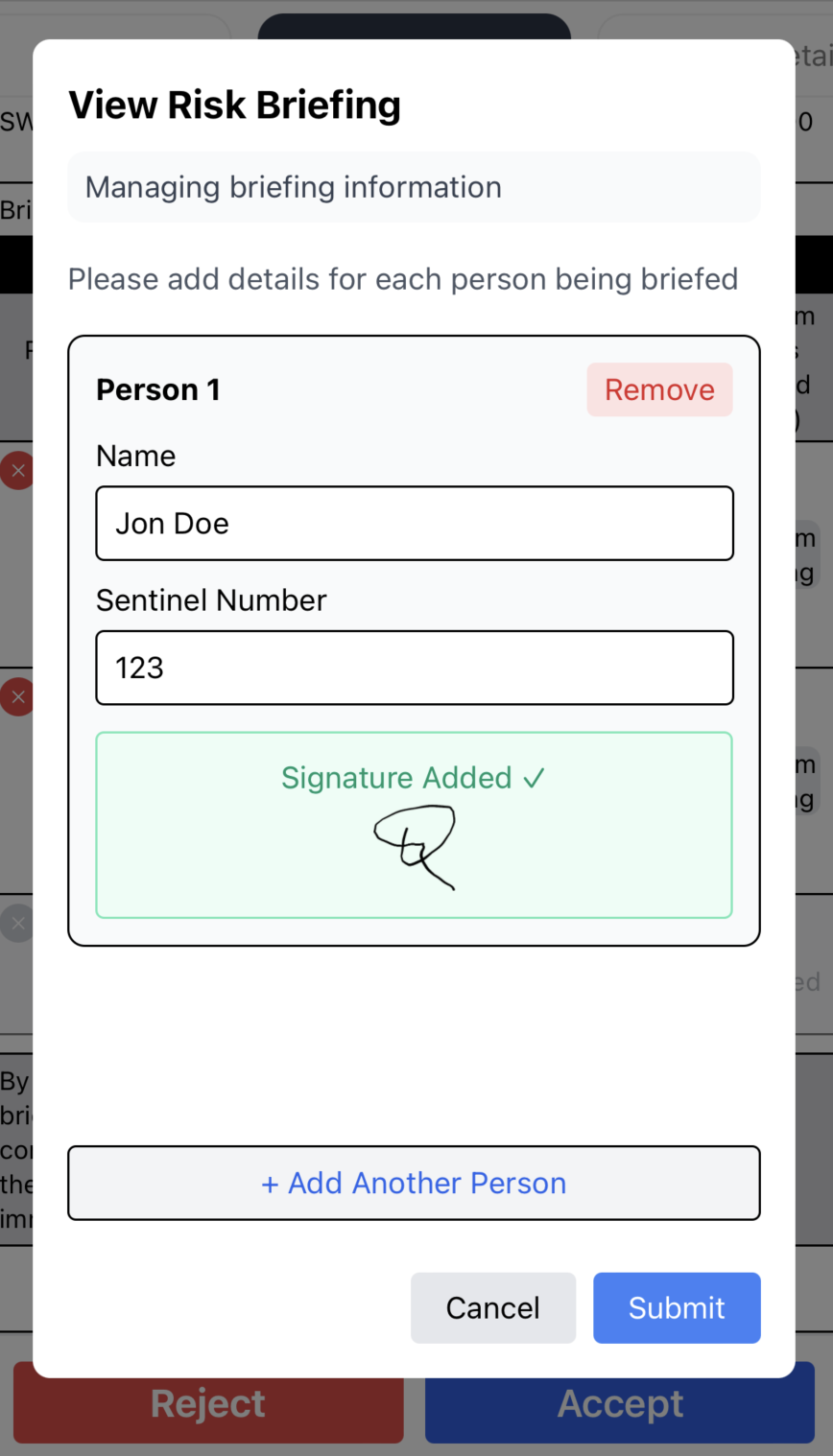
If you have a workgroup that needs to be briefed on the task risks, you'll need to sign them onto each applicable task risk:
- For each task risk that applies to your workgroup, tap on the Confirm Risks Briefied column to open the workgroup briefing modal.
- Add each person's name and sentinel number.
- Have each person sign to confirm they understand the risk and control measures.
- Submit the briefing details.
Accepting on Site
- Scroll down past the Risk Control Briefing section to the "Acceptance on Site" section.
- Select an option in either of the checkboxes.
- If selecting "Reject":
- Add text explaining the reason for rejection
- If selecting "Reject":
- If you have any comments or notes about the SWP that need to be shared with the Planning team then add them to the general comments field.
- Click the "Accept" or "Reject" button.
When you accept the SWP, the following information will be automatically populated:
- Your name
- Current date and time
- Your current location
- Your signature (from your profile)

If you've accepted the SWP you'll then be alerted the SWP has been accepted and be prompted to fill out the RT9909.
If you've rejected the SWP you'll then be alerted the SWP has been rejected and navigated back to the Dashboard.
Be sure to do a thorough check of the SWP before verifying it. This includes checking all details are accurate and compliant with the 019 Standard.