Company Map
Managing Map Submissions
Users with Approve Team Submissions or Approve All Submissions permission can review all pending submissions and suggested edits from the Manage Submissions page. This is where you control what gets added to your company's map.
Who Can Access This Page
You need either Approve Team Submissions or Approve All Submissions permission. If you have either, your sidebar shows Map as a dropdown with View Map and Manage Submissions. See Map Permissions for details on how these are configured.
Navigating to Manage Submissions
Click Map in the sidebar, then select Manage Submissions. The link shows a badge with the number of pending items in your full approval queue.
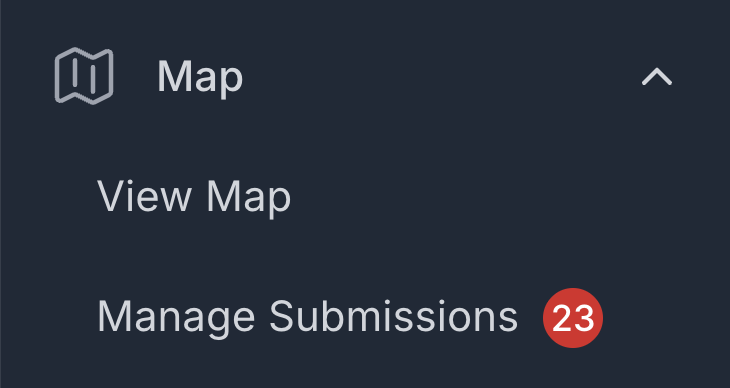
Two Badges for Approvers
As an approver, you will also see a badge on My Submissions for your own pending items. The two counts are independent - the Manage Submissions badge reflects the wider queue, while My Submissions covers only submissions you made yourself.
Default View on Load
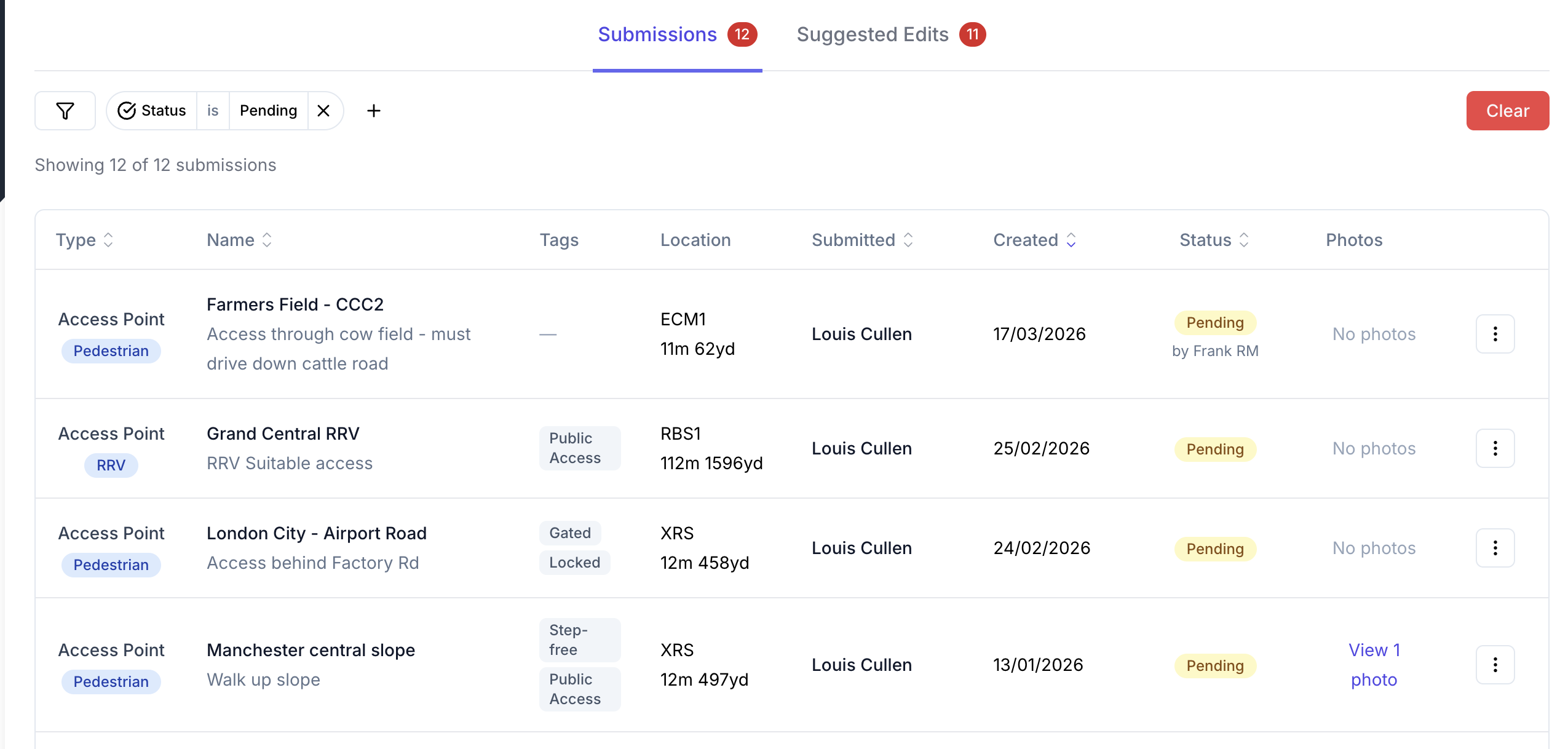
The page opens with the Status filter set to Pending so you land directly on items awaiting your review. If the queue is empty, the filter clears on first load so the table is not blank. Any filter you select yourself is always preserved.
The Two Tabs
The page has two tabs:
- Submissions - new access points and hazards submitted by users, awaiting your review
- Suggested Edits - proposed changes to existing assets, awaiting your review
Filtering, Sorting, and Pagination
Both tabs include filters to help you find what you need quickly. You can filter by:
- Status - Pending, Approved, Rejected, or Archived
- Asset type - Access Point or Hazard
- Team - filter by the team the submission belongs to (company approvers only)
- Date range - narrow down by when the submission was created
Results can be sorted by submission date, asset name, or submitter. Use the pagination controls at the bottom to navigate through large queues.
Reviewing a Submission
Click any row to open the full detail view. You can see all the submitted information - name, description, type, severity, ELR, mileage, GPS coordinates, tags, and any attached photos. An embedded mini-map shows the asset's proposed location.
From the detail view:
- Click Approve to accept the submission. The asset will appear on the company map as Approved and become visible to all users.
- Click Reject to decline it. You will be prompted to enter a reason, which is shown to the submitter so they can understand the decision and resubmit if appropriate.
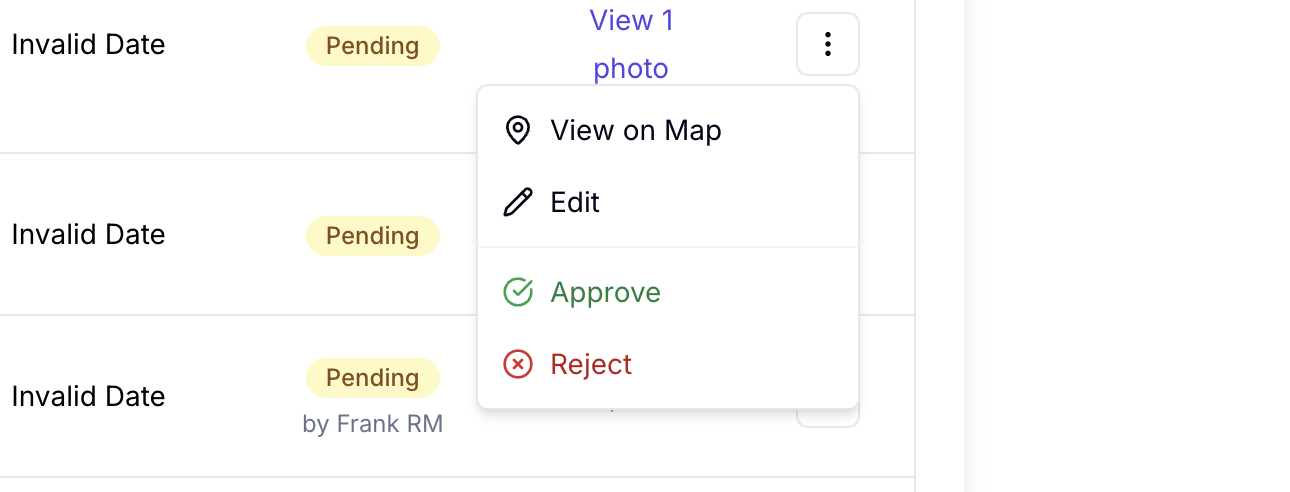
You can also approve or reject directly from the table row using the dropdown actions menu without opening the full detail view.
Reviewing a Suggested Edit
Click Review on a suggested edit row to open the review modal. This shows a side-by-side comparison of the current values and the proposed changes, with any modified fields highlighted so you can see exactly what is being changed.
For location changes, the modal displays both the current and proposed positions on an embedded map, with the distance between them shown.
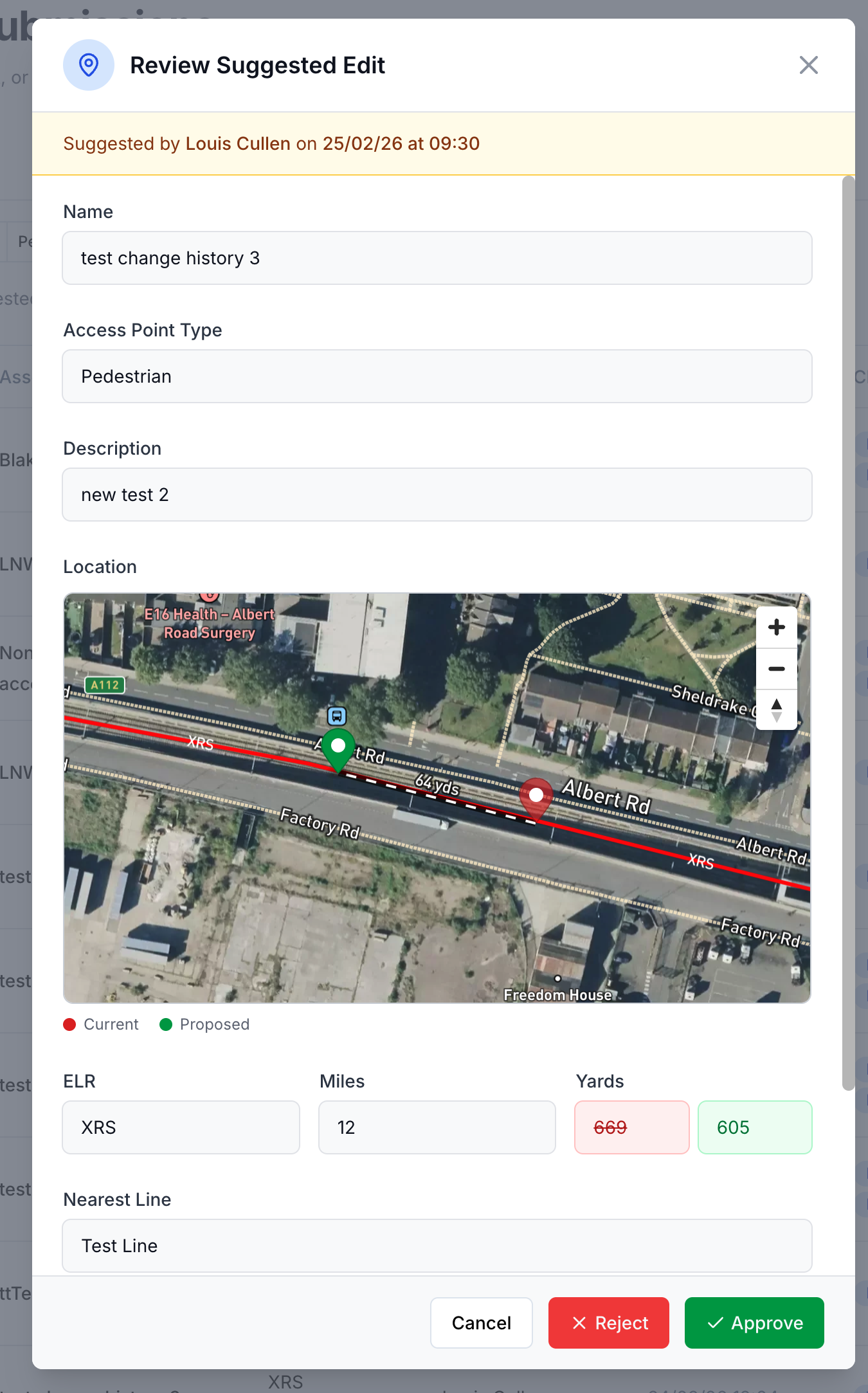
- Click Approve to apply the changes. The asset is updated immediately.
- Click Reject to decline the suggestion. You can provide a reason for the submitter.
Team vs Company Approval Scope
The submissions you can see and approve depend on your permission level:
- Approve Team Submissions - you can only see and approve submissions from members of teams you belong to
- Approve All Submissions - you can see and approve submissions from any user in the company, regardless of team
If a submission appears in your queue, you have the authority to act on it. Submissions outside your team scope will not appear if you only have Approve Team Submissions permission.