Company Map
Company Map
The Company Map provides a private, company-specific view of railway assets - access points and hazards - to support safe working on site. All users in your company can view the map, and most can contribute to it by submitting new assets or suggesting changes to existing ones.
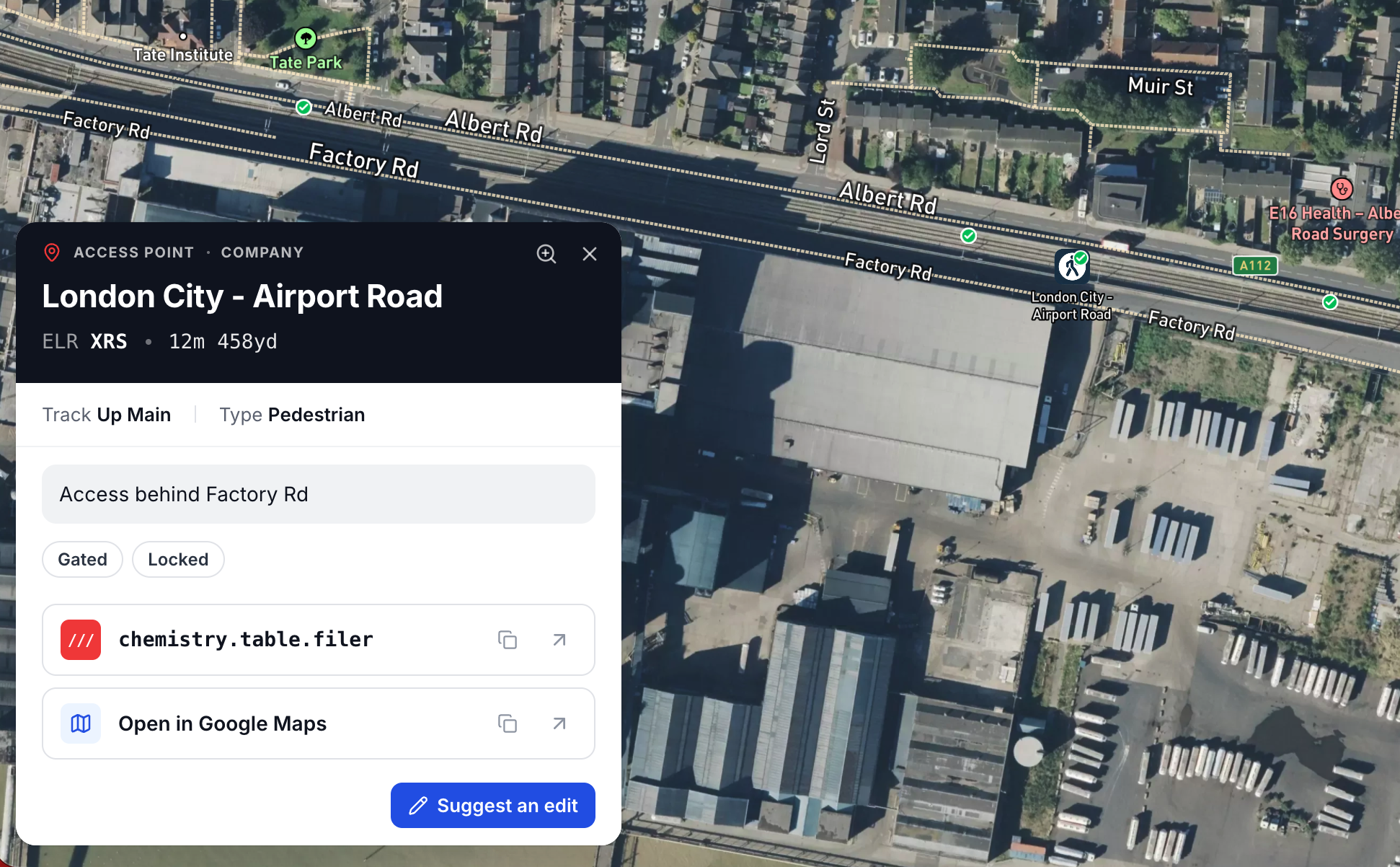
What You Can See
The map displays two types of assets:
- Access Points - locations where workers can enter or exit the railway, categorised as Pedestrian, Vehicle, or RRV access
- Hazards - safety concerns such as vegetation, structural issues, track conditions, or environmental hazards
Each asset appears as a marker on the map. The markers are colour-coded by type and display a status badge indicating whether the asset is approved, pending, or otherwise.
Asset Statuses
Every asset on the map has a status that determines its visibility and who can interact with it:
| Status | Meaning |
|---|---|
| Approved | Visible to everyone in the company. This is a confirmed, reviewed asset. |
| Pending | Awaiting approval from a reviewer. The submitter can still edit it directly. |
| Rejected | Not approved by a reviewer. The submitter is notified with a reason. |
| Archived | Previously approved but removed from the active map by an approver. |
Pending assets are only visible to the person who submitted them and to users with approval permissions. Once approved, they become visible to everyone in the company.
Interacting with Assets
Tap or click any marker on the map to open a detail panel. This panel shows the asset's name, description, type, ELR and mileage, along with links to What3Words and Google Maps for the location.
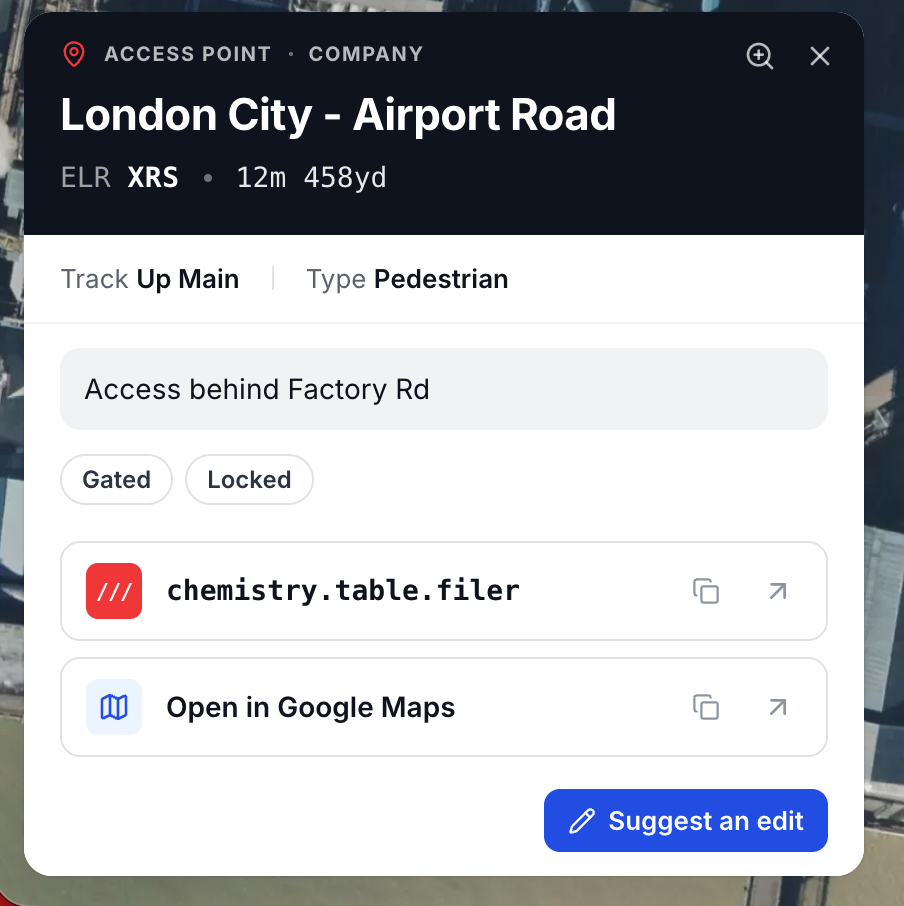
The actions available to you depend on your role:
- Owner of a pending asset - you will see an "Edit" button, allowing you to make changes directly without needing approval
- Any user - you will see a "Suggest an edit" button on approved and pending assets (not on rejected ones), which submits your proposed changes for review
- Approver - you will see an "Approve" button on pending assets and an "Archive" button on approved assets
Getting Started
Submitting Assets
Learn how to add new access points and hazards to the map
Suggesting Edits
Propose changes to existing assets on the map
My Submissions
Track your own pending and rejected submissions and suggested edits
Managing Submissions
Review, approve, and reject submissions as an approver
Permissions
Configure who can submit and approve map assets