Responsible Managers
Requesting Safe Work Packs
As a Responsible Manager, you have the authority to request Safe Work Packs when operational needs arise or when specific work activities require formal safety documentation.
Accessing the Request System
Navigate to Request SWP to access the Safe Work Pack request system.

Simplified Process
The requesting page uses the same interface as the pack creation page, but with significantly reduced minimum requirements. You can provide as much or as little detail as needed for your specific situation.
Minimum Requirements
The following fields are required for all Safe Work Pack requests:
- Dates & Times: When the work needs to be completed
- Planner or Team: Assignment to individual planner or planning team
- PIC: Person In Charge assignment
- RM: Responsible Manager (yourself)
- Nature of Work: Description of work to be performed
- ELR and Mileage: Location reference details
- Location Information: Must be completed and confirmed
Team Assignment Options
Individual Planner Assignment
Select a specific planner when you know who should handle the request.
Team Assignment

You can request to a team of planners rather than an individual. This is useful when:
- The specific planner assignment doesn't matter
- You want the planning team to self-assign based on workload
- The work type requires specialized planning expertise
- Multiple planners might be involved in the preparation
Location Information (Required)

This section is mandatory and must be completed for all requests. After entering the location details, you must click the "Confirm" button to validate the information.
Confirmation Required
The location information section will not be accepted until you click the "Confirm" button. This validates the ELR and mileage data against the system.
Required location details include:
- ELR (Engineer's Line Reference): Specific line identification
- Mileage: Exact location reference points
- Site boundaries and work area limits
- Access points and entry routes (if known)
- Line configurations and track layout (if applicable)
Optional Additional Information
While not required, you can provide additional detail if available:
Welfare Facilities
Include welfare facility requirements and arrangements for the work crew.
Hazard Information
Document any known hazards or risk factors that should be considered during planning.
Custom File Uploads
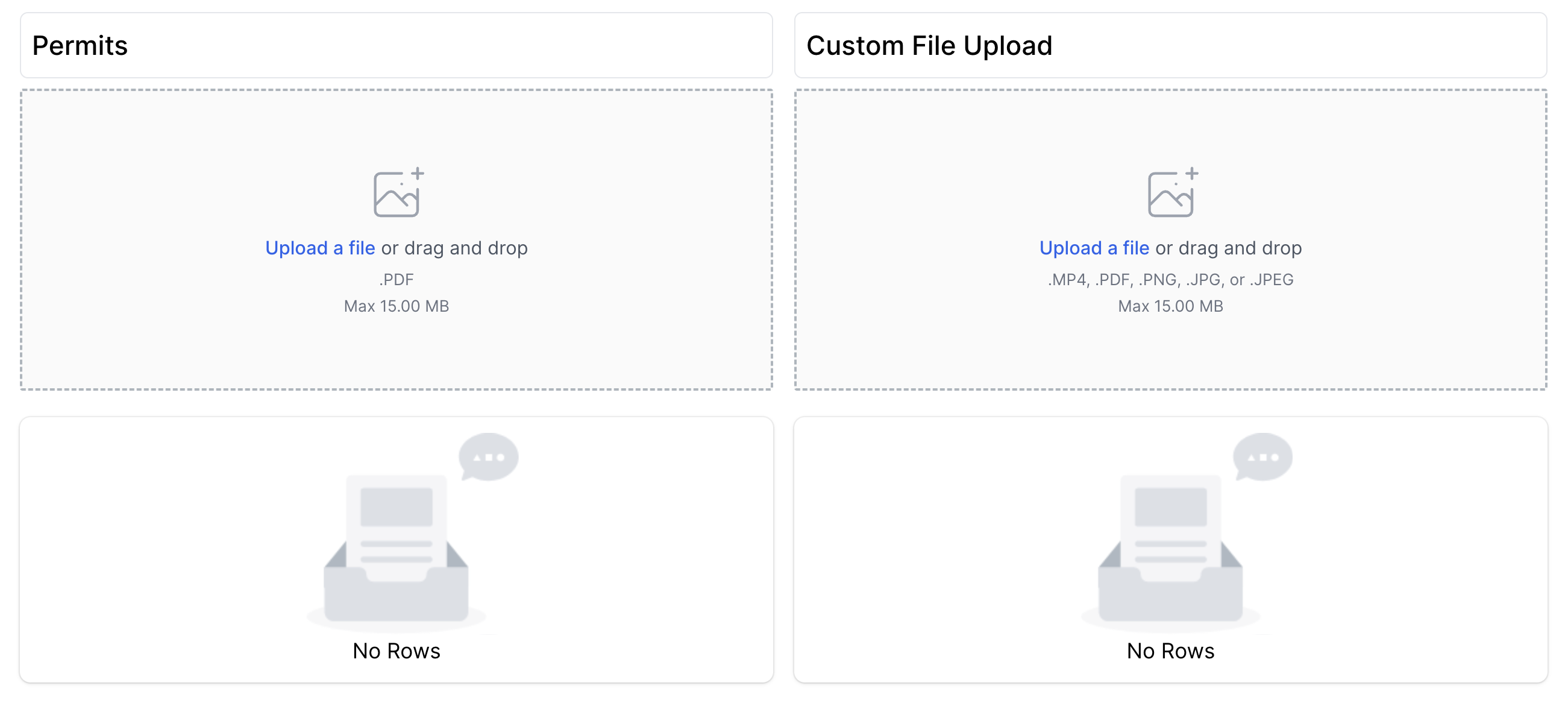
As a Responsible Manager, you can upload supporting documentation to enhance your request:
Supported File Types
- PDF Documents: Technical specifications, method statements, safety bulletins
- Images: Site photographs, diagrams, sketches (JPEG, PNG formats)
- Videos: Site walkthroughs, safety briefings (MP4 format)
Common Upload Examples
- TBS (Track Block Sections): Track layout diagrams and block information
- Site photographs: Current conditions and access routes
- Method statements: Detailed work procedures
- Safety bulletins: Recent safety notices relevant to the work
- Technical drawings: Equipment layouts and specifications
- Previous pack references: Similar work documentation
File Size Limit
There is a 15MB total size limit for all uploaded files combined. This ensures compatibility across all devices and network conditions.
File Upload Best Practices
- Use clear, descriptive names for uploaded files
- Include dates in file names for time-sensitive information
- Compress large files where possible to stay within limits
- Remove outdated files to avoid confusion
- Brief on uploaded content during coordination meetings
Request Process
Initiating a Request
- Navigate to Request SWP
- Complete minimum required fields for basic request submission
- Add optional information as available and relevant
- Upload supporting files if they will aid in planning
- Submit request and monitor for assignment confirmation
Request Stages
- Created: Request has been submitted and is awaiting planner assignment or action
- Completed: The Safe Work Pack has been fully developed and processed
- Cancelled: Request has been withdrawn or cancelled by the RM
Managing Your Requests
Request Register
Access the Request Register to view and manage all your submitted requests.
From the request register, you can:
- View all your requests and their current status
- Edit requests that are still in "Created" status
- Cancel requests that are no longer needed
- Copy previous requests to create new requests with similar details
- Track progress of requests through to completion
Request Management
You can only edit or cancel requests while they are in "Created" status. Once a planner begins working on the request, it cannot be modified.
Best Practices
Effective Request Management
- Be specific in your work descriptions to avoid delays
- Provide complete minimum information upfront to enable processing
- Include supporting documentation that will aid in planning
- Set realistic deadlines that allow for proper safety planning
- Maintain regular communication with the assigned planning team
Communication Guidelines
- Use clear, concise language in all request communications
- Include relevant background information that may affect safety planning
- Specify any special requirements or constraints early in the process
- Provide contact information for follow-up questions
- Respond promptly to requests for additional information
Urgent Requests
For urgent or emergency work requests, contact the planning team directly by phone in addition to submitting the online request to ensure immediate attention.
Common Request Issues
- Forgetting to hit Confirm on location information - the most common error
- Not assigning a team or individual planner - request cannot be processed
- Insufficient detail in work descriptions leading to delays
- Unrealistic timelines that compromise safety planning quality
- Missing location information causing confusion and rework
- Large file uploads exceeding the 15MB total limit causing processing delays