Planners
Creating a Pack - SWP Types
When creating a Safe Work Pack (SWP) in Accurail, one of the first decisions you'll need to make is selecting the SWP Type. We offer three main types: Non-Cyclic, Cyclic, and Repeated. Let's focus on the Cyclic and Repeated options, as they offer some unique benefits for recurring work.
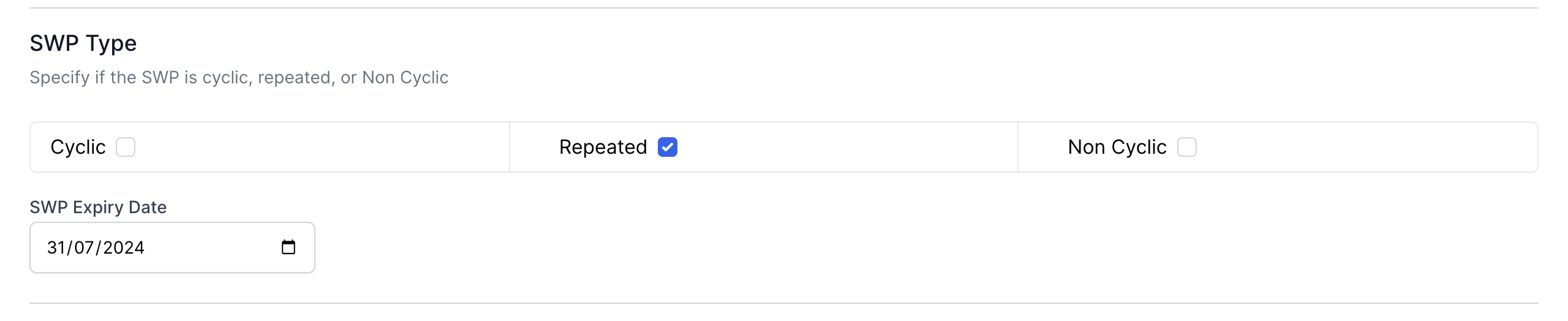
Cyclic and Repeated SWPs
- Cyclic SWPs are for tasks which are performed to a frequence schedule specified in Network Rail's Standards.
- Repeated SWPs are for tasks that repeat with no defined frequency.
These types of SWP allow you to create multiple shifts without requiring verification and authorisation for each one. Here's what you need to know:
Repeat Packs: How to create
SWP Expiry Date
- This allows you to set an end date for the entire pack.
- It's particularly useful for long-term projects or recurring maintenance tasks.
Creating the First Shift
- When setting up a Cyclic and Repeated SWP, it's crucial to create only the first shift initially and fill it out completely before adding additional shifts.
- This is important because Accurail's multi-shift functionality works by copying all data from shift 1 to new shifts. If you copy before filling out shift 1, you're essentially copying a blank shift.
Adding Multiple Shifts to Cylic and Repeated SWP's
For repeat packs, you have two options for adding shifts:
Option 1: Add shifts during initial creation
- You can now add all shifts at once during the initial SWP creation process.
- When you send shift 1 for verification, all shifts will go for verification simultaneously.
- When the PIC verifies shift 1, all shifts will be verified at once and go to RM for authorisation.
- When the RM authorises, their authorisation applies to all shifts at once and the SWP will go to awaiting shift status.
Option 2: Add shifts after authorisation
- Get the first shift verified and authorised as usual.
- Once this is done, you can use the 'Add Shift' button on the Safe Work Pack Overview page from the 'Options' dropdown to add extra shifts without additional verification.
 Adding multiple shifts to a repeat SWP
Modifiable Details for Repeat SWPs
While the core information remains the same, you can adjust certain details for each shift:
Dates & Times
Staff on the Shift
Possession Details
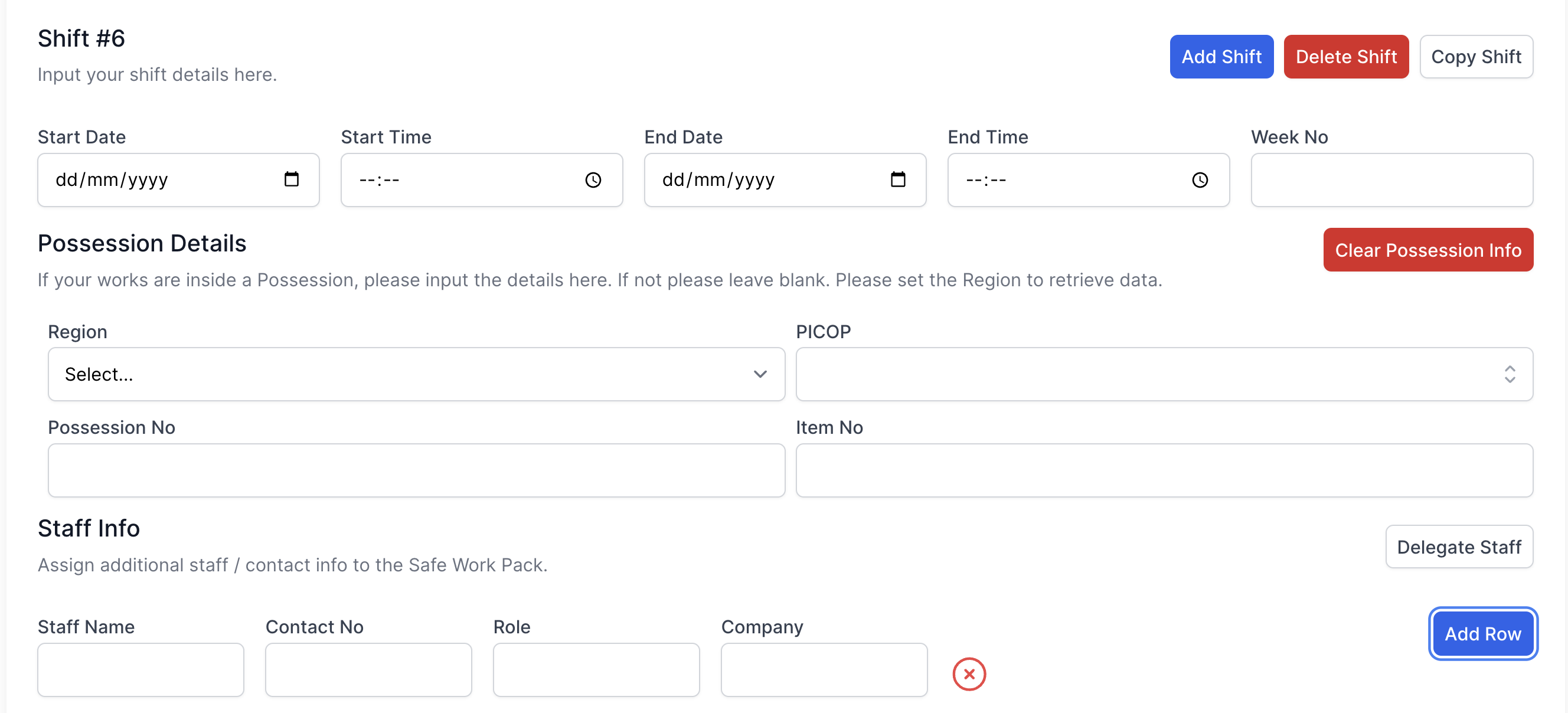 Modifiable data for repeat SWPs
By using Cyclic and Repeated SWPs effectively, you can significantly reduce administrative overhead for recurring work while maintaining safety and compliance.